The problem: Jira shows status, not progress
Jira is excellent at tracking state — a ticket is either To Do, In Progress, or Done. But state and progress are different things. An issue marked "In Progress" could be 5% done or 95% done. A sprint with ten "In Progress" tickets tells you almost nothing about how close you are to shipping.
Teams work around this in different ways: adding percentage fields manually, reading subtask counts, or running JQL reports. None of these give you a quick visual answer in the list view or on a dashboard.
A Jira progress bar solves this by surfacing progress as a visual element — directly on the issue, in list view columns, and in dashboard gadgets.
Quick answer: Jira Cloud does not have a native progress bar field. You add one via a Marketplace app that creates a custom field. Setup takes under five minutes.
Three types of progress bar for Jira
Not every issue tracks progress the same way. A design task has different checkpoints than a bug fix, which is different again from an epic with ten subtasks. That's why it helps to have three distinct field types available:
1. Manual progress bar
You set the percentage yourself by dragging a slider. Simple and completely flexible. Useful for creative work, tasks with subjective milestones, or any situation where completion isn't determined by system events.
Best for: design tasks, content creation, research, discovery work.
2. Status-based progress bar
Maps your Jira workflow statuses to percentage values. When the issue moves from "To Do" to "In Progress" to "Done", the bar advances automatically. Zero extra clicks required.
You configure the mapping once in Admin Settings — for example:
- To Do → 0%
- In Progress → 50%
- In Review → 75%
- Done → 100%
After that, the bar updates every time someone changes the issue status. No manual input needed.
Best for: sprint tickets, bugs, standard development tasks — any issue that moves through a defined workflow.
3. Subtask-based progress bar
Calculates resolved subtasks ÷ total subtasks automatically. No setup required beyond adding the field — it reads Jira's own subtask data. The field also shows the raw count ("2/3 done") next to the bar.
Best for: epics, stories with subtasks, QA checklists, multi-step tasks, onboarding flows with child issues.
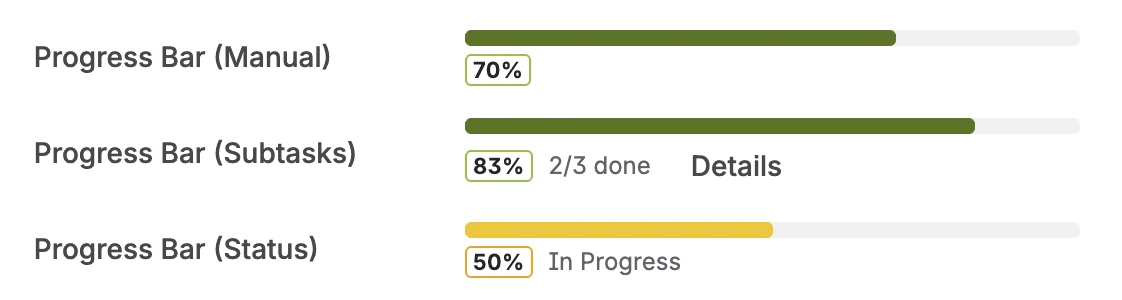
All three field types on a single issue — Manual (70%), Subtasks (83%, 2/3 done), Status (50%, In Progress)
Progress in the Jira list view
The real power isn't on the individual issue — it's when you add progress fields as columns to the list view or backlog. Each field type gets its own column: you can show Manual, Status-based, and Subtask-based side by side, or just the one that fits your workflow.
The columns display a colored dot and the percentage value. Red is immediately visible — a sprint with three red dots at 10% on day four of five is a risk signal that no status column would surface this clearly.
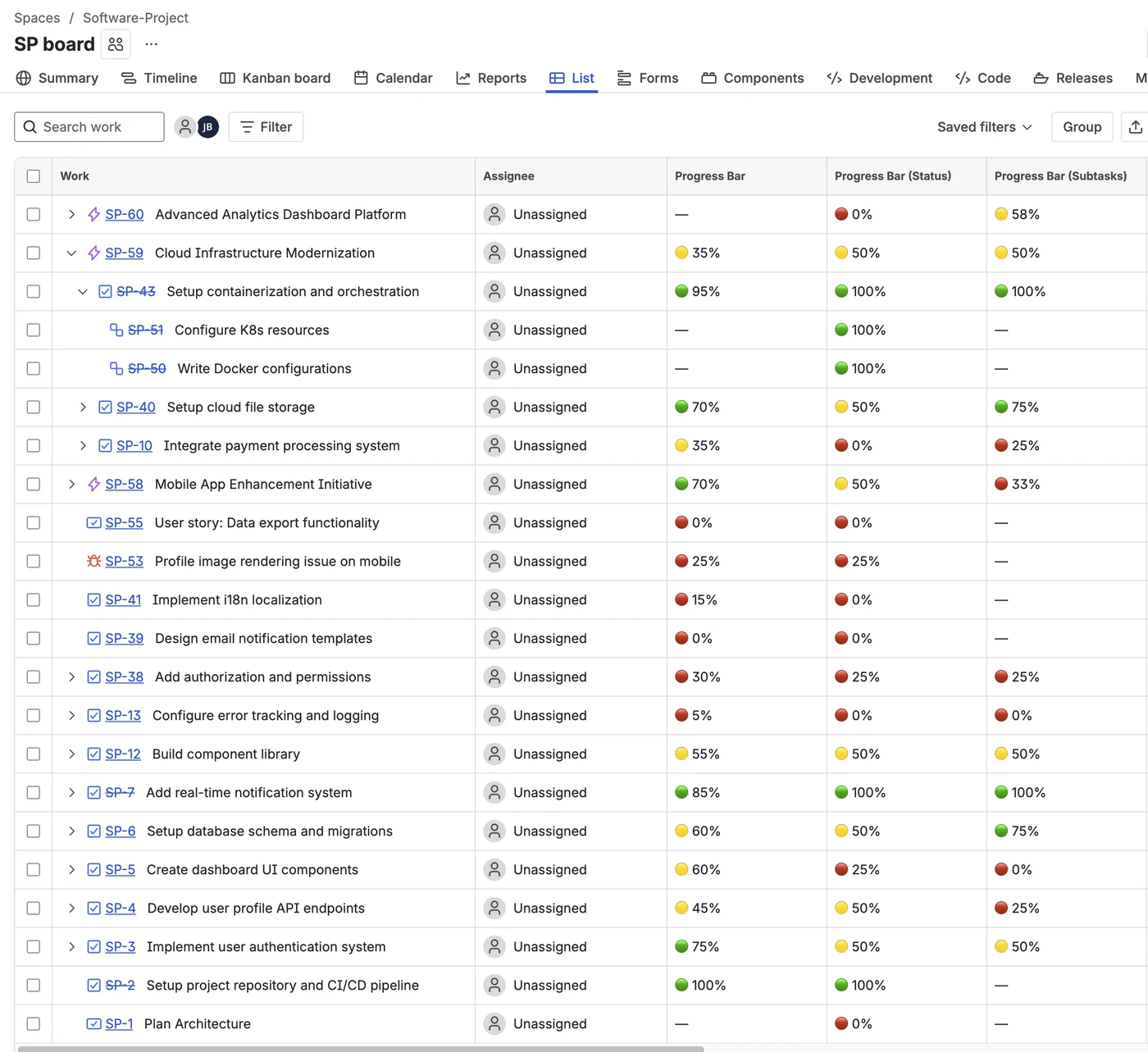
Three progress columns in the Jira list view — each field type has its own column with a color-coded dot and percentage
Tip: Sort any progress column ascending to surface at-risk items at the top. Issues sitting at 0% mid-sprint are the ones that need a conversation — not a status update.
How to set up a progress bar in Jira
The following steps apply to Visual Progress Tracker for Jira, available on the Atlassian Marketplace. The app is built on Atlassian Forge, so it runs entirely on Atlassian's own infrastructure — no external servers, no data leaving your Jira site.
-
1Install the app from the Atlassian Marketplace. Free trial available, no credit card required.
-
2Go to Jira Settings → Custom Fields. Create a new custom field and select one of the three progress bar types: Manual, Status-Based, or Subtask-Based.
-
3Add the field to your project screens. Jira will then display the progress bar on all relevant issue views in that project.
-
4Add the field as a list view column by clicking the column header area in any Jira list or backlog. The progress bar is now visible across your entire project at a glance.
-
5(Optional) Add the dashboard gadget. The Progress Tracker Overview gadget gives team leads a summary table of every issue in a project, sortable by progress value.
For Status-Based fields, one additional step: go to App Settings → Status Mappings and assign a percentage to each of your workflow statuses. After that, everything is automatic.
Color thresholds: when does a bar turn red?
By default, the color coding works like a traffic light:
- Red: 0–33%
- Yellow: 34–66%
- Green: 67–100%
These thresholds are configurable in Admin Settings. If your team considers anything below 50% at-risk, you can adjust the yellow/green boundary accordingly. The color change propagates immediately across all views — list, issue detail, and dashboard.
JQL queries with progress fields
Once a progress bar field exists in your project, its value is stored as a regular Jira custom field — which means JQL can read it. This unlocks a set of queries that aren't possible with native Jira alone.
Find at-risk issues mid-sprint
project = "MYPROJ"
  AND sprint in openSprints()
  AND "Progress Bar (Status)" < 50
  ORDER BY "Progress Bar (Status)" ASC
Returns every issue in the active sprint whose status-based progress is below 50%, sorted ascending so the most stuck items appear first. Save it as a filter and pin it to your sprint review dashboard.
Surface stalled epics
issuetype = Epic
  AND statusCategory != Done
  AND "Progress Bar (Subtasks)" < 25
  AND updated < -14d
  ORDER BY updated ASC
Combines subtask completion with the last-updated timestamp: epics with less than 25% subtask completion that haven't been touched in two weeks. These are the candidates for "are we still doing this?" conversations.
Roll up by assignee or team
project = "MYPROJ"
  AND assignee in membersOf("backend-team")
  AND statusCategory != Done
  ORDER BY "Progress Bar (Manual)" DESC
Group by team and order by progress descending — useful in standups for spotting where to dig in first. The team-membership function uses any Atlassian group your admin has configured.
Tip: JQL field names that contain spaces or parentheses must be wrapped in double quotes. If your custom field is named something like Progress Bar (Subtasks), that exact name with quotes is what JQL needs.
Dashboard gadget for project-wide overview
For non-developers — stakeholders, team leads, account managers — a dashboard gadget often works better than a JQL filter. The Progress Tracker Overview gadget that ships with Visual Progress Tracker shows a sortable table of every issue in a chosen project, with a color-coded progress bar on each row.
Gadget configuration accepts:
- Project — which Jira project to read from.
- Progress calculation mode — Subtasks, Status, or Manual.
- JQL filter — any valid JQL expression including
ORDER BY, to narrow the table to a specific sprint, label, assignee, or epic.
The gadget bounds the initial result set on very large projects so the dashboard stays fast, and shows a note when more matching issues exist than were loaded — at which point refining the JQL filter brings the result set within the limit. For deeper coverage of the gadget see how the Sprint Health gadget pairs with a progress gadget for sprint-level views.
Bulk updates via the Jira REST API
Because progress bar values are stored as standard Jira custom fields, the Jira REST API can read and write them like any other field. This matters for two common workflows:
- Migration — moving progress values from a third-party app or spreadsheet onto Jira issues in bulk.
- Automation — a CI job that updates progress on an issue when a deployment completes, or a script that resets manual values at sprint boundaries.
Read the current value
GET /rest/api/3/issue/MYPROJ-123
  ?fields=customfield_10042,customfield_10043,customfield_10044
The custom field IDs are listed in Jira Settings → Custom Fields. Each progress bar type has its own ID. The response contains the numeric value (0–100) and the colour band derived from your configured thresholds.
Set a manual progress value
PUT /rest/api/3/issue/MYPROJ-123
{
  "fields": {
    "customfield_10042": 75
  }
}
Manual progress fields accept any integer between 0 and 100. Status and Subtask fields are read-only via the API — they recalculate automatically from the underlying Jira state, so writing them directly is rejected.
Note: Bulk reads via JQL search return current cached values. If an issue's status changed since the issue was last opened, the JQL response may show a slightly stale percentage for Status and Subtask fields. Opening the issue (or hitting the /issue/<key> endpoint directly) forces a recalculation.
Choosing the right field type
If you're not sure which of the three field types fits, use this short decision tree:
- Does the issue have subtasks that represent the real work? → Subtask Progress. The bar reflects exactly what's done vs left.
- Does the issue move through a defined workflow with meaningful intermediate states (e.g. In Review)? → Status Progress. The bar advances automatically as people transition the issue.
- Is "done-ness" subjective — design review, content drafting, research? → Manual Progress. The owner drags the slider to whatever feels right.
- Several of these apply? Add multiple field types on the same issue. The app supports all three simultaneously, and each gets its own list-view column so they sit side by side.
Many teams ultimately settle on a combination: Subtask Progress on epics and parent stories, Status Progress on individual tasks and bugs, Manual Progress reserved for design and research work. See the subtask approach for epic progress for a deeper dive on combining the first two.
Frequently asked questions
Does Jira have a built-in progress bar?
Jira Cloud does not have a native progress bar custom field for individual issues. You can see subtask counts in the issue detail view, but there is no visual bar that appears in list views, backlogs, or dashboards without an app.
How do I add a progress bar to a Jira issue?
Install a custom field app from the Atlassian Marketplace — for example Visual Progress Tracker for Jira. Create a progress bar custom field in Jira Settings → Custom Fields, add it to your project screens, and the bar appears on every issue. Status-based and subtask-based types update automatically.
Can I show progress bars in the Jira list view?
Yes. Once you add a progress bar custom field, you can add it as a column to any Jira list view or backlog. Each field type gets its own column, showing a color-coded dot and the percentage value. You can add one column per field type — for example, Status-based and Subtask-based side by side.
What is the difference between status-based and subtask-based progress in Jira?
Status-based progress maps your Jira workflow statuses to percentages. Subtask-based progress calculates resolved subtasks ÷ total subtasks. Use status-based for individual issues that move through a workflow; use subtask-based for epics or parent issues with child tasks.
Does a Jira progress bar work with JQL?
Yes. Custom fields created by the app are JQL-compatible. You can filter, sort, and report on progress values using standard Jira Query Language — for example, finding all issues where progress is below 25% across a project.
Can I sort Jira issues by progress in JQL?
Yes. Example: project = MYPROJ AND "Progress Bar (Status)" < 50 ORDER BY "Progress Bar (Status)" ASC returns under-50% issues sorted by progress ascending. Wrap field names with spaces or parentheses in double quotes.
Is there a dashboard gadget for Jira progress tracking?
Yes. The Progress Tracker Overview gadget shows a sortable table of every issue in a chosen project with color-coded progress bars. It supports JQL filtering — including ORDER BY clauses — and bounded result sets so it stays fast on very large projects.
Can I update Jira progress values via the REST API?
Manual progress fields are read-write via the standard Jira REST API. PUT a value between 0 and 100 to the field's customfield_* ID. Status and Subtask fields are read-only via the API — they recalculate automatically from the underlying Jira state.
Is there a free Jira progress bar app?
Visual Progress Tracker for Jira offers a free trial on the Atlassian Marketplace with all features included. After the trial, it is a per-user subscription.
Try it in your Jira project
Visual Progress Tracker is free to try — all three field types, list view columns, and the dashboard gadget included from day one.
Try it free on Marketplace →