The manual scoring bottleneck
Frameworks like RICE, WSJF, and ICE solve the "everything is high priority" problem — but they introduce a new one: someone has to fill in the scores. On a team with a 60-issue backlog, that's 60 issues × 3–4 dimensions × time to think about each one. Most teams start with good intentions and trail off somewhere around ticket #15.
The result is a partially scored backlog — which is almost worse than an unscored one, because it gives false confidence: the top of the list looks data-driven, but the bottom is still guesswork.
AI-assisted scoring addresses this directly. Not by replacing human judgment, but by handling the initial estimate — giving every ticket a plausible starting score that the team can review, adjust, and own. The AI does the first pass; humans do the final judgment.
Quick answer: Priority Scoring for Jira integrates with Rovo — Atlassian's built-in AI agent platform — to suggest or automatically apply RICE, WSJF, and ICE scores to your issues. Three modes: Suggest (advisory), Confirm (human approval required), and Auto (writes directly). All data stays on Atlassian's infrastructure.
What Rovo is — and what it isn't
Rovo is Atlassian's AI agent platform, introduced as part of Atlassian Intelligence. It provides a chat interface within Jira and Confluence where you can interact with purpose-built AI agents — agents that don't just answer questions, but can take actions: search your content, read issues, create pages, update fields.
Rovo is not a general-purpose chatbot you connect your own API key to. It's a platform with a defined permission model, and third-party Marketplace apps extend it with custom agents and actions. Priority Scoring for Jira publishes a Rovo agent that has exactly one purpose: reading Jira issues and suggesting or writing priority scores.
Rovo requires Atlassian Intelligence to be enabled on your instance. If your organization hasn't enabled it yet, your Jira admin can do so via Atlassian Administration. Rovo is available as part of Atlassian's Premium and Enterprise cloud plans.
How the Priority Scoring Rovo agent works
When you invoke the Priority Scoring agent in a Rovo chat, it can read any Jira issue you point it at — title, description, acceptance criteria, labels, and existing field values. It then applies a reasoning process to each scoring dimension:
- For RICE: estimates how many users might be affected (Reach), how much the feature would move a key metric (Impact), how well-supported the estimate is (Confidence), and how much work it requires (Effort).
- For WSJF: estimates Business Value, Time Criticality, and Risk Reduction (all relative to other backlog items), plus Job Size in Fibonacci units.
- For ICE: estimates Impact on the team's current key metric, Confidence based on evidence in the issue, and Ease based on the apparent implementation scope.
Crucially, Rovo returns its reasoning — not just numbers. For each dimension, it explains why it picked that value. This is what makes AI scoring usable in practice: you can read the reasoning, disagree with it, and correct the value on the slider in seconds. That's much faster than reasoning from scratch.
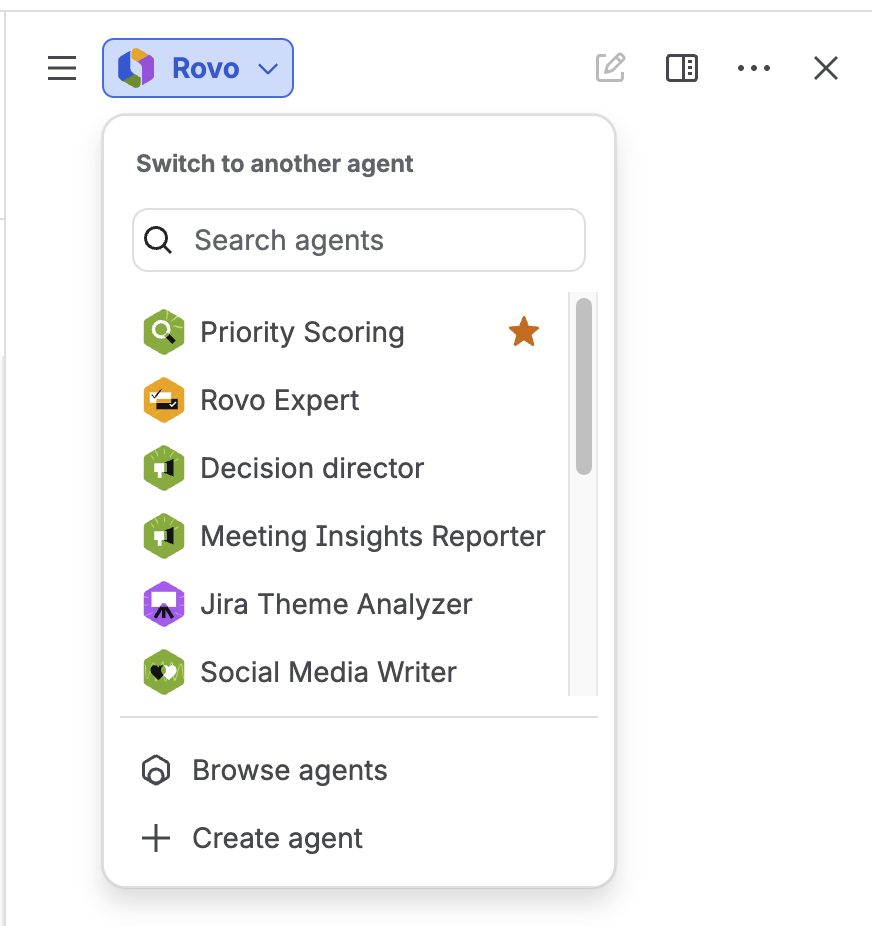
Selecting the Priority Scoring agent in Rovo — accessible from the Rovo chat in any Jira context
The three operating modes
Priority Scoring's Rovo integration has three modes, configurable in the app's Settings. The mode determines how much autonomy Rovo has — how far it goes from suggestion to written score without additional human input.
| Mode | What Rovo does | Human step required | Best for |
|---|---|---|---|
| Suggest | Returns recommended dimension values and reasoning in the chat. No writes to Jira. | You manually apply values via sliders on the issue. | Teams new to AI scoring; high-stakes backlogs; calibration phase |
| Confirm | Proposes a score in the chat, then asks: "Shall I apply this to PROJ-123?" Waits for your reply. | You type "yes" or "no" per issue. | Most teams: good balance of speed and oversight |
| Auto | Applies scores directly to Jira fields. Atlassian's native permission dialog appears as a platform-level safeguard. | You approve Atlassian's permission prompt once. | Bulk scoring; large backlogs; teams confident in AI judgment |
The mode is enforced server-side in the app — it's not a client setting a user can bypass. If the admin has set the team to Confirm mode, the agent will always request confirmation before writing, regardless of how the chat prompt is phrased.
Switching modes: When you change the mode in Settings, it takes effect in new Rovo chat sessions. An active chat retains the mode it was started with. Open a new Rovo chat after a mode change to pick up the new behavior.
What a scoring session looks like
Here's a representative exchange in Confirm mode. The PM types a request; the Priority Scoring Rovo agent reasons through the RICE dimensions and asks for confirmation before writing:
Based on the issue description and similar export requests in your backlog, here's my assessment:
Shall I apply this score to PROJ-47?
This exchange takes 30–60 seconds per issue. The PM corrected one dimension — and the interaction surfaced exactly the kind of context that an AI can't know: the feature is behind a paywall, so the effective reach is lower. That's how the human-in-the-loop is supposed to work.
Bulk scoring your backlog
The most time-saving use of Auto mode is bulk scoring — working through a list of unscored issues in a single command. In a Rovo chat, with Auto mode enabled:
"Score all unscored issues in project PROJ with RICE."
Rovo fetches the unscored issues, applies RICE dimension values to each one based on its content, and writes the scores to the custom fields. A bulk limit applies per call (default: 10 issues) to prevent uncontrolled mass updates. After the first batch, you can re-run the command for the next batch.
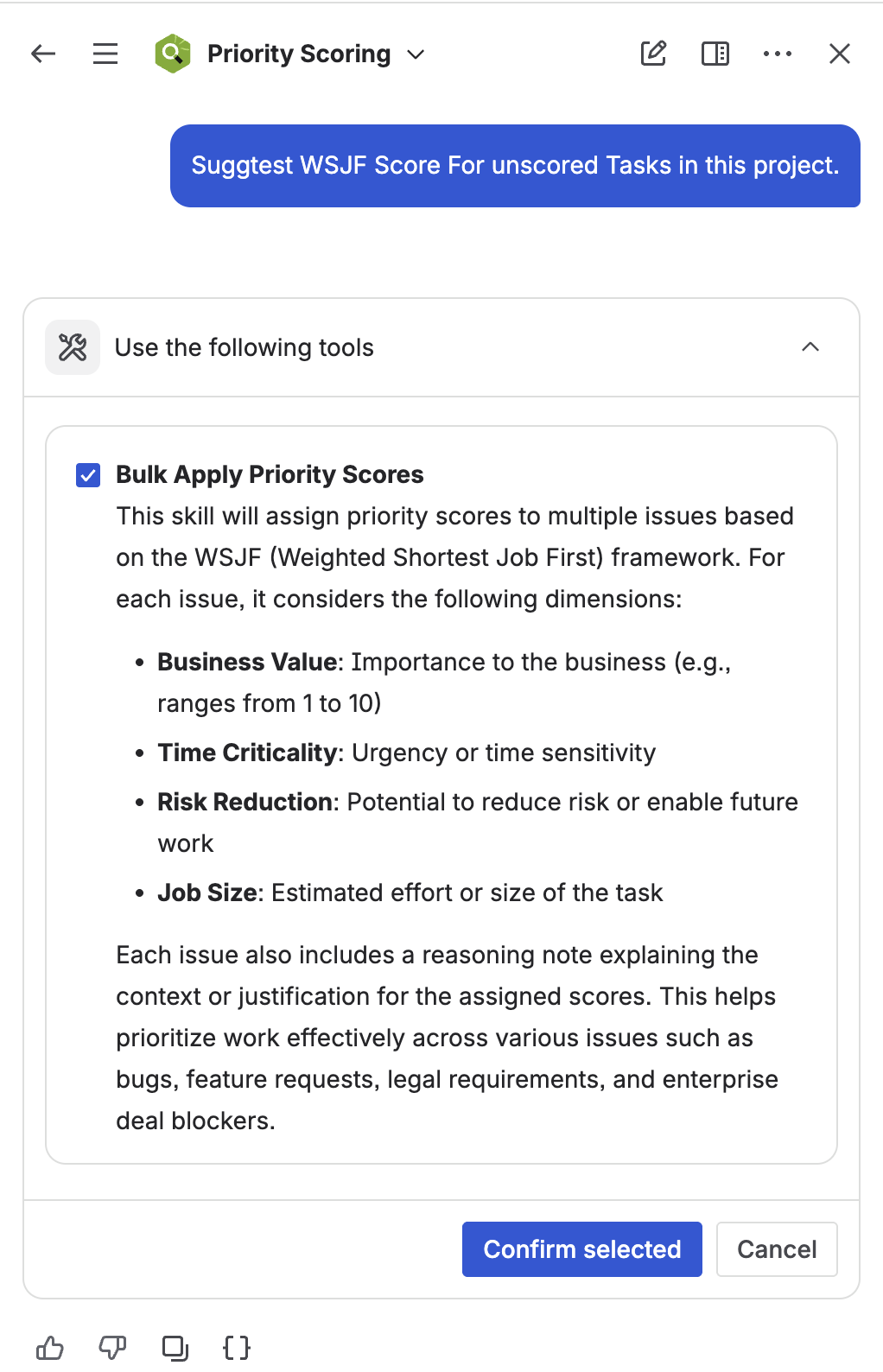
Rovo bulk-scoring unscored issues in a project — applied values visible in the Rovo activity feed
After bulk scoring, review the ranked backlog in the Priority Scoring dashboard. Filter for issues with scores outside your expected range — outliers often reveal either an unusually well-described ticket (high score) or a vague, under-specified one (low score). Both are actionable signals for your next refinement session.
Rovo reasoning attached to issues
In Confirm and Auto mode, the Priority Scoring agent can optionally attach a brief reasoning note to the Jira issue — explaining why each dimension was scored the way it was. This creates an audit trail that's readable by any team member opening the issue later, not just the PM who ran the scoring session.
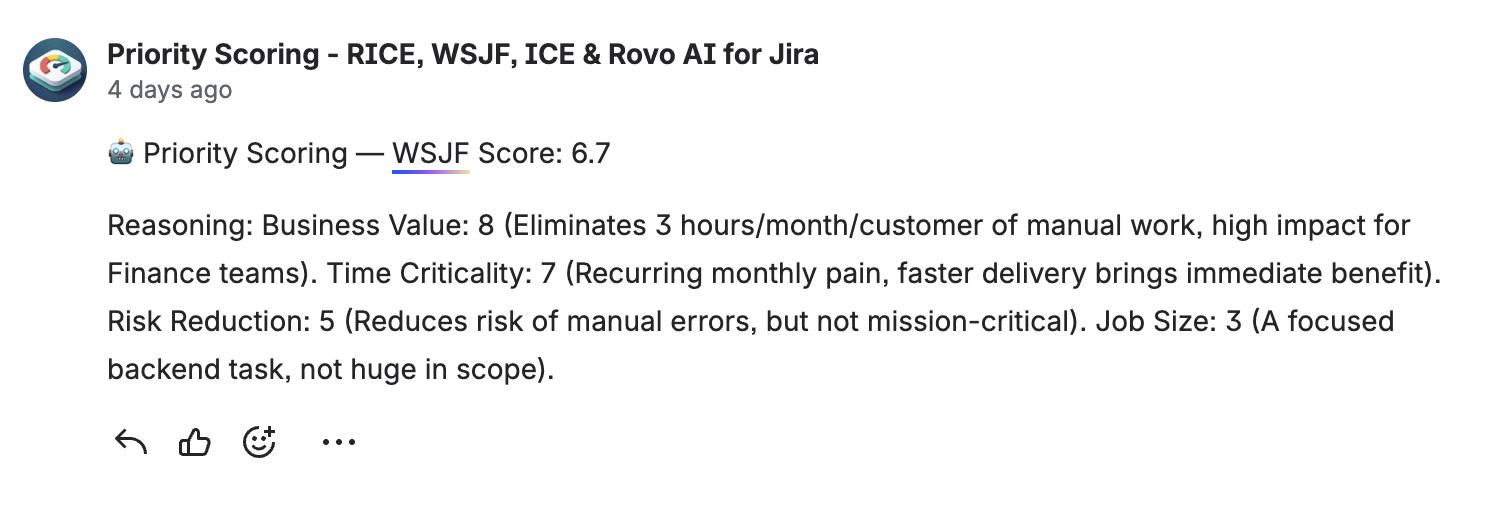
Rovo attaches a scoring rationale to the Jira issue — the reasoning is visible alongside the field values
How accurate is AI scoring?
AI scoring accuracy depends heavily on issue quality. Well-written issues — with a clear description, acceptance criteria, and context about the affected users — consistently get reasonable first-pass scores. Sparse issues ("Add dark mode") get generic scores that are only marginally better than a random starting point.
The most common corrections teams make after reviewing AI suggestions:
- Reach: AI estimates based on visible text; teams often know the actual user segment is narrower or broader than implied.
- Confidence: AI tends toward 80% for most issues with any description. Teams with hard data (analytics, interviews) should bump this up; teams with pure hypotheses should knock it down.
- Effort: AI underestimates effort for cross-team dependencies and overestimates for well-understood UI changes. Engineers should review effort scores before they're accepted.
A practical calibration approach: run Suggest mode for two weeks, record which AI suggestions you accept vs. override, and look for patterns. Once you trust the AI's judgment in specific areas (e.g., Impact and Confidence for your product type), switch those to Confirm or Auto.
Data security
Priority Scoring for Jira is a Forge-native app — it runs entirely on Atlassian's own cloud infrastructure with no external servers. When Rovo processes a scoring request, the issue content is handled within the Atlassian platform. No issue data is sent to third-party AI providers by Priority Scoring itself. Rovo's underlying AI capabilities are provided by Atlassian Intelligence, which operates under Atlassian's security practices.
This is the "Runs on Atlassian" advantage — for enterprise teams with data residency requirements or strict data processing agreements, it removes the category of risk introduced by third-party AI integrations entirely.
Getting started with AI scoring
-
1Install Priority Scoring for Jira from the Atlassian Marketplace. The Rovo integration is included — no separate installation or API key needed.
-
2Verify that Atlassian Intelligence is enabled on your site. Rovo requires Atlassian Intelligence. If it's not enabled, contact your Atlassian admin. It's available on Jira Cloud Premium and Enterprise plans.
-
3Set your Rovo mode in Priority Scoring Settings. Navigate to the Priority Scoring global settings and choose Suggest, Confirm, or Auto under the Rovo section. Start with Suggest if you're new to AI scoring.
-
4Open a Rovo chat and select the Priority Scoring agent. Type a scoring request: "Suggest a RICE score for PROJ-123." Review the reasoning and apply, adjust, or discard the suggestion.
-
5Review the ranked backlog after scoring. Open the Priority Scoring dashboard to see the ranked view. Look for outliers — issues scoring much higher or lower than you expected — and use those as starting points for your next refinement session.
Frequently asked questions
Can Jira automatically prioritize my backlog with AI?
Yes, with the right Marketplace app. Priority Scoring for Jira integrates with Rovo to suggest or automatically apply RICE, WSJF, and ICE scores to your issues. Rovo reads each issue's content, reasons through the scoring dimensions, and writes results to Jira's native custom fields. Three modes control the level of automation: Suggest, Confirm, and Auto.
What is Rovo in Jira?
Rovo is Atlassian's AI agent platform, part of Atlassian Intelligence. It enables purpose-built AI agents that can search, read, and take actions across Jira, Confluence, and connected tools. Third-party Marketplace apps — like Priority Scoring for Jira — extend Rovo with custom agents that perform specific tasks, such as scoring backlog issues.
Is AI-generated scoring safe to use in Jira?
With appropriate mode settings, yes. In Suggest mode, Rovo only recommends values — nothing is written to Jira without human action. In Confirm mode, Rovo requests explicit approval before writing each score. Auto mode applies scores directly but Atlassian's native permission dialog still appears as a platform safeguard. For sensitive backlogs, start with Suggest or Confirm mode until you've calibrated the AI's judgment.
How do I bulk-score my entire Jira backlog with Rovo?
In a Rovo chat with Auto mode enabled, type: "Score all unscored issues in project PROJ with RICE" (use your project key). Rovo processes the unscored issues in batches of up to 10 per call. After each batch, you can repeat the command for the next batch. Review the results in the Priority Scoring dashboard.
Does Rovo send my Jira data to external servers?
No. Priority Scoring for Jira runs entirely on Atlassian's cloud infrastructure (Forge-native, "Runs on Atlassian" badge). Rovo itself is an Atlassian product. Your issue data is processed within Atlassian's systems and is not transmitted to any third-party servers by this app.
Score your backlog with Rovo AI — in minutes, not hours
Priority Scoring for Jira includes the Rovo AI agent, three scoring frameworks, Board Health score, and Portfolio view. Free trial on Marketplace.
Try it free on Marketplace →